Hover over Previously Assigned on for any resource to see a detailed assignment history. This includes, when available, the Due Date, Availabe From, and Available Until dates. Click View Assignment Details to be taken to the Details page for the assignment.

1. Select your language preference and then the +Add button.

2. Set Due Date and availability. When assigning, you have the ability to add:

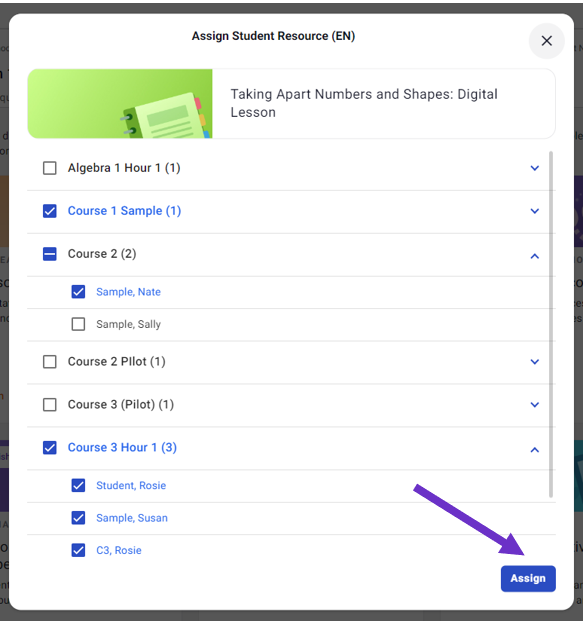
3. On the menu, select the class or classes who will receive the assignment. To assign to individual students, expand the class by selecting the arrow to the right of any class.

4. Once all students are chosen, select the Assign button.
There are three ways to Preview or Reassign content from the Assignments page.
1. When viewing the Assignments page in list view, click on the three dots to the right of any assignment.

2. From the detailed view of any assignment, click on the three dots in the upper right corner of the screen.

3. If you Unassign after students have started the activity, it will be listed under Inactive. Students are not able to see inactive assignments. If you want students to do the activity again, you can Reassign it by clicking on the three dots.

Assign right from your Preview experience! Please Note: This feature will be available once Playlists are enabled for your school.
1. Click on the Assign button in the upper right corner of your preview screen.

2. Clicking the Assign button will close the preview and bring up the assign screen.

3. Selecting the Assign button while previewing a previously created playlist will assign the full playlist.

