Select the Preview button to preview the student view of the assignment.

To view answers, toggle the “Show Answers” button at the bottom of the screen.

Toggle the button in the top left corner of the screen to view the assignment as a student. Preview mode will default to viewing as a teacher. When the button is toggled to the right, you are viewing the assignment as a student.

Streamline your workflow by reviewing student work from a class roster menu while previewing an assessment or assignment.
Select Open on the resource in your course resources or Preview on the Assignment details page.
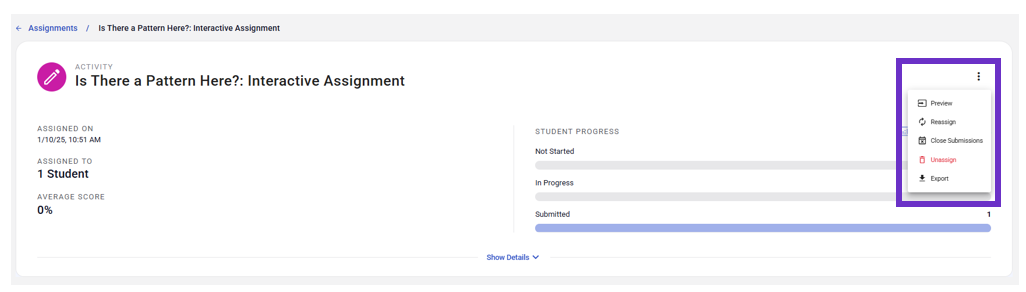
Select Review from the dropdown menu at the top of the page. Then, select a student with Needs Evaluation next to their name.

Score each question with scoring options like the one below.

When you’ve scored all questions, select Submit Scores.

You will receive a message that you have successfully evaluated the assignment. To evaluate another student’s assignment, select the student from the dropdown menu. You may close the screen by clicking the x in the upper right corner of the assignment.

Assign right from your Preview experience! Please Note: This feature will be available once Playlists are enabled for your school.
1. Click on the Assign button in the upper right corner of your preview screen.

2. Clicking the Assign button will close the preview and bring up the assign screen.

3. Selecting the Assign button while previewing a previously created playlist will assign the full playlist.

